

In 2026, Internet Explorer (IE) might not be the go-to browser for most people, but it still has its place in legacy systems and corporate environments. Whether you're working with older applications or managing a network with specific browser requirements, you may need to configure proxy settings in IE.
This guide will show you how to configure, enable, and disable proxy settings in Internet Explorer, ensuring that you can safely browse the internet, access restricted content, and keep your browsing activities secure. We'll cover step-by-step instructions and provide practical advice to make the process as smooth as possible.
When Should You Configure Proxy Settings in Internet Explorer?
Before we get into the how-to, let's discuss when and why you might want to set up a proxy in Internet Explorer:
- --Corporate Networks: Many businesses use proxy servers to control internet access and enhance security. Configuring a proxy allows employees to access internal resources while filtering out potentially harmful content.
- --Enhanced Security: If you are concerned about online privacy or want to secure your browsing traffic, using a proxy can mask your IP address, making it harder for websites to track you.
- --Accessing Restricted Content: Some websites block content based on geographic location. A proxy server can help you bypass these restrictions and access content from different regions.
- --Legacy Systems: Certain older systems, applications, or browsers (like Internet Explorer) may require a proxy configuration to ensure compatibility and functionality.
If you're looking for a reliable proxy service to use with Internet Explorer, UnoProxy provides fast and secure connections, perfect for businesses and individuals who need privacy, security, and unrestricted access to content.
With those scenarios in mind, let’s move forward with how to set up a proxy in Internet Explorer.
How to Configure Proxy Settings in Internet Explorer
Step 1: Open Internet Explorer Settings
To configure proxy settings in Internet Explorer, you first need to access its settings menu. Here's how:
1. Open Internet Explorer on your computer.
2. Click on the gear icon in the top-right corner of the browser window to open the menu.
3. Select Internet Options from the dropdown list.
This will open the Internet Options window, where you can adjust various settings related to your browser’s functionality.
Step 2: Access the Connections Tab
Once you're in Internet Options, follow these steps:
1. In the Internet Options window, navigate to the Connections tab. This tab is where you can manage your network and connection settings.
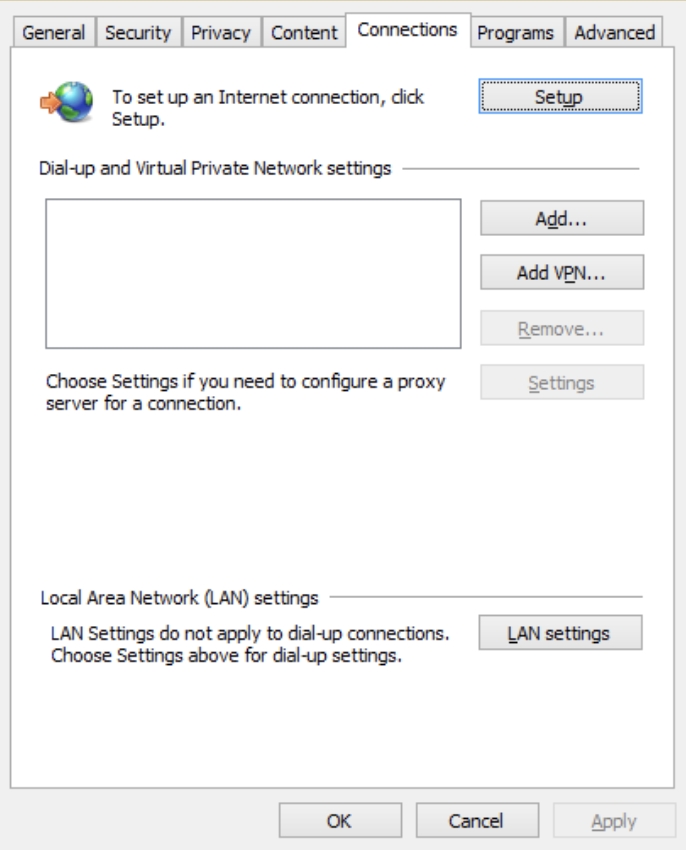
2. Under Local Area Network (LAN) settings, click the LAN Settings button. This will open a new window where you can configure your proxy settings.
Step 3: Enable Proxy Server
In the LAN Settings window, you’ll need to enable the proxy server by following these steps:
1. Check the box that says "Use a proxy server for your LAN". This will activate the proxy settings.
2. In the Address field, enter the proxy server address provided by your network administrator or proxy service. If you're using a third-party proxy provider like UnoProxy, you’ll need to input their server address.
3. In the Port field, enter the port number used by the proxy server (this information will also be provided by your proxy service).
4. Optionally, if you need to configure separate proxies for different protocols (like HTTP, HTTPS, or FTP), you can do so in this section.
Once you've entered the proxy server address and port, you’re almost done.
Step 4: Authentication (If Required)
If the proxy server requires authentication (such as a username and password), follow these additional steps:
1. Check the box that says "Use a proxy server for your LAN" (if you haven't already done so).
2. When prompted, enter the username and password required by the proxy server.
3. Ensure that your credentials are accurate. This step is crucial, as incorrect authentication details will prevent the proxy from functioning properly.
Once you've entered your proxy details and authentication information, you can move on to the next step.
Step 5: Save and Apply Changes
After entering all the necessary information:
1. Click OK to save the settings in the LAN Settings window.
2. Click Apply in the Internet Options window to apply the changes.
3. Click OK to close the Internet Options window.
Your proxy settings are now configured in Internet Explorer. This will route your browser’s traffic through the proxy server, helping you manage privacy and security. If you're using UnoProxy, their high-speed servers will help maintain a fast and secure browsing experience.

How to Test if Proxy Settings Are Working in Internet Explorer
Once you've configured the proxy settings in Internet Explorer, it’s important to verify that they are working properly. Here’s how to check:
- Open Internet Explorer and go to a website like WhatIsMyIP.com to confirm that your IP address has changed. If the proxy is active, the website will display the IP address of the proxy server, not your actual IP.
- If the proxy is not functioning as expected, double-check the proxy server address and port number in the LAN Settings.
- Clear the browser cache and restart Internet Explorer to ensure the proxy settings are applied correctly.
Testing your proxy connection ensures that you can browse securely and that your proxy configuration is effective.
How to Disable Proxy Settings in Internet Explorer
If you no longer need to use the proxy server, or if you're troubleshooting an issue, you can disable the proxy settings in Internet Explorer. Here’s how:
- Open Internet Options by clicking the gear icon in Internet Explorer and selecting Internet Options.
- Go to the Connections tab and click the LAN Settings button.
- Uncheck the box that says "Use a proxy server for your LAN" to disable the proxy.
- Click OK to save the changes and close the LAN Settings window.
- Click Apply and then OK in the Internet Options window.
Disabling the proxy will return your browser to direct internet access.
Common Proxy Issues in Internet Explorer
While setting up a proxy in Internet Explorer is typically straightforward, there are a few common issues that may arise:
1. Proxy Connection Errors
If you're getting connection errors, it may be due to an incorrect proxy server address or port. Double-check the settings in the LAN Settings window to ensure the details are accurate.
2. Authentication Problems
If the proxy requires a username and password, and you’re unable to authenticate, ensure that your credentials are correct. If you're unsure about your username or password, reach out to your network administrator or proxy service for assistance.
3. Slow Browsing Speed
Sometimes, using a proxy can result in slower browsing speeds. This may be due to the type of proxy service you're using. If you experience consistent slowdowns, consider using a faster or more reliable proxy provider, such as UnoProxy, which offers fast, secure, and stable connections.
4. Websites Not Loading
If websites aren’t loading correctly, it could be due to DNS issues or incorrect proxy settings. Ensure that the DNS server addresses in your network settings are correctly configured, and that the proxy server supports the type of content you're trying to access.
Additional Tips for Configuring Proxy Settings in Internet Explorer
- -Configure Separate Proxies for Different Protocols: If your network requires different proxies for HTTP, HTTPS, and FTP, you can configure them separately in the LAN Settings window. This is useful for networks that have different rules for various types of traffic.
- -Use a Proxy Extension: While Internet Explorer does not natively support extensions for proxy management, third-party applications and proxy software can make it easier to manage your proxy settings without manually adjusting them every time.
If you need a fast and reliable proxy for your business or personal use, UnoProxy offers a simple setup and secure connections, making it an ideal choice for browsing through Internet Explorer.
Conclusion
Configuring proxy settings in Internet Explorer is a simple yet effective way to enhance security, privacy, and access to content. Whether you're working in a corporate environment, bypassing geo-blocks, or just securing your browsing traffic, setting up a proxy in IE allows you to take control of your internet experience.
If you're looking for a secure and reliable proxy provider to configure with Internet Explorer, consider UnoProxy for fast and private browsing. Their services can help ensure your online activities remain safe and private.
For additional resources or to explore other proxy configuration options, check out more articles on proxy services and online security.
