

Achieving a stable and reliable proxy connection hinges on correct setup. This guide provides clear, step-by-step instructions on how to use UnoProxy with Shadowrocket—clarifying if it's a VPN or proxy, and ensuring you can successfully set up a proxy server in Shadowrocket on your first attempt for optimal performance.
Is Shadowrocket a VPN or Proxy?
First, let's clarify a common question: Is Shadowrocket a VPN or proxy? Shadowrocket is a powerful iOS networking utility that can handle both VPN and proxy configurations. For this guide, we are specifically using it as a proxy client to connect to the UnoProxy proxy server. This method is often favored for its flexibility and performance in specific use cases.
Why Correct Configuration Matters for Shadowrocket + UnoProxy
An incorrect set up proxy in Shadowrocket often leads to connection failures, IP leaks, and app access issues. The root cause is usually not the tool itself, but incorrect parameter entry or improper routing settings. This tutorial will help you avoid these pitfalls.
⚠️ Important Prerequisite: Your device's local network must already have access to the required international network environment. Without this, a connection will fail even with perfect configuration.
Preparation – Understanding Your UnoProxy Server Parameters
Before you begin the Shadowrocket proxy server setup, you need your credentials from the UnoProxy dashboard.

You will receive a string similar to:111.42.133.45:6643:f3rf23g432tg:5h35g42r3r3
This string contains four distinct parts:
- --Host: 111.42.133.45
- --Port: 6643
- --Username: f3rf23g432tg
- --Password: 5h35g42r3r3
📌 Tip: Write these four elements down separately before starting to avoid input errors.
How to Add an UnoProxy Node in Shadowrocket
Step 1: Create a New Proxy Node
1. Open Shadowrocket and tap the "+" icon in the top right corner.
2. You will now enter the node configuration screen.

Step 2: Select the Correct Protocol & Enter Details
This is the core of the Shadowrocket proxy server setup.
1. Under Type, select SOCKS5.
2. Fill in the details as follows:
-Server: Your Host address.
-Port: Your Port number.
-User: Your Username.
-Password: Your Password.
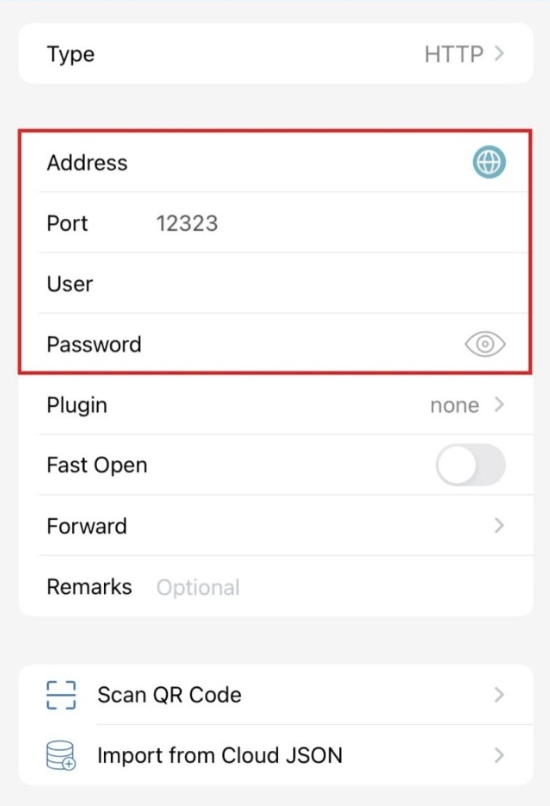
3. Ensure the following options are ENABLED:
✅ TCP Fast Open
✅ UDP (Recommended for stability)
4. Tap "Save" in the top right corner.
🔍 This configuration minimizes compatibility issues and is a stable setup within Shadowrocket.
Global Routing Settings – The Critical Step
Adding the node doesn't activate it. You must configure the routing.
1. Return to the Shadowrocket home screen.
2. Set the Global Routing option to Proxy.
3. Select the UnoProxy node you just created.
4. Toggle the top switch to ON (Connected).
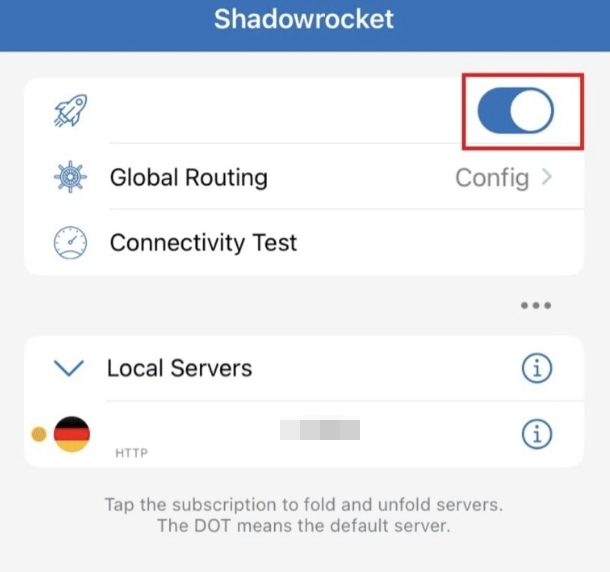
If not set to Global (Proxy) mode, some apps or websites may bypass the proxy, causing IP check failures.
How to Verify Your Setup is Successful
Always verify your connection after setup.
1. With Shadowrocket connected, open your browser.
2. Visit a site like ping0.cc or whatismyipaddress.com.
3. Check the displayed IP address. It should match the IP provided in your UnoProxy dashboard.
A matching IP confirms you have successfully completed the set up proxy in Shadowrocket process.
Advanced Tips for Stability
For the best long-term experience with UnoProxy and Shadowrocket:
- -Use proxies that support dynamic rotation to reduce load on a single IP.
- -Ensure your service offers global IP coverage for flexibility.
- -Account-based authentication (as used here) typically offers more stability than IP whitelisting.
FAQ
Shadowrocket shows "Connected," but my IP didn't change.
First, verify your Global Routing is set to Proxy. Then, check if specific apps are bypassed by custom rules.
I get a "Connection Timeout" error.
This is most often related to your local network. Re-check the prerequisite about your network environment.
Is enabling UDP necessary?
It is highly recommended. Some applications and connection types require UDP for optimal stability and performance.
