

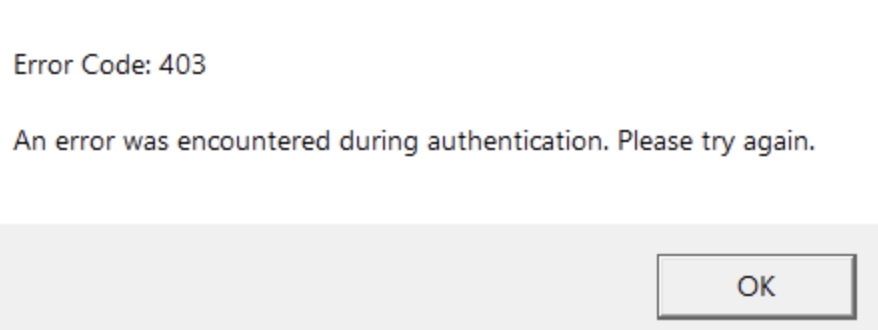
If you're a Roblox player suddenly facing the frustrating "Error Code 403" message, you're not alone. This issue, which often appears as "Access Denied" or "Forbidden," can prevent you from logging in or joining your favorite games. The error typically occurs when Roblox's servers reject your connection request—not because your account is banned, but due to network, device, or security mismatches.
The good news? Most triggers behind Error 403 are solvable. In this guide, we’ll walk you through what causes this error and how to fix it using clear, beginner-friendly steps. Let’s get you back into the game.
What Is Roblox Error Code 403?
Error Code 403 is an HTTP status that means "Forbidden." In simple terms, Roblox’s servers recognize your request but are refusing access. Think of it like showing up to a party—the host sees you at the door but doesn’t let you in.
This error is commonly confused with a ban, but that’s not always the case. It often stems from technical issues like IP conflicts, outdated files, or firewall settings. You might still have a working internet connection—it’s Roblox that’s saying "no" right now.
What Causes Error Code 403 in Roblox?
Several factors can lead to this error. Identifying the root cause is the first step toward fixing it.
1. IP or DNS Issues: If your IP address has been flagged—e.g., due to suspicious activity or shared network usage—Roblox may block it. Misconfigured DNS settings can also prevent a stable connection.
2. Outdated or Corrupted Files: An incomplete update or damaged local installation can interfere with authentication, leading to a 403 error.
3. Overprotective Firewall or Antivirus: Sometimes, security software mistakenly identifies Roblox as a threat and blocks its access to servers.
4. VPN or Proxy Interference: While proxies can help bypass restrictions, low-quality or detected VPNs often use blacklisted IPs, triggering a 403 response.
5. Account Restrictions: In rare cases, a temporary suspension or region-specific ban could be the cause.
How to Fix Roblox Error Code 403
Try these troubleshooting methods one by one. Most require no technical expertise.
✅ 1. Restart Your Router or Use a Different Network
A simple router reboot can assign you a new IP address—which may resolve IP-based blocking. Alternatively, switch from Wi-Fi to a mobile hotspot to test if the issue is network-related.
✅ 2. Change Your DNS Server
Using a public DNS can improve connectivity and bypass ISP-level restrictions:
- -Go to Network Settings (on Windows: Control Panel > Network and Internet > Network and Sharing Center)
- -Select your connection > Properties > IPv4 > Use the following DNS addresses
- -Enter:Preferred DNS: 8.8.8.8 (Google)Alternate DNS: 1.1.1.1 (Cloudflare)
✅ 3. Reinstall Roblox and Clear Cache
Corrupted files often cause Error 403. Fully uninstall Roblox, then delete leftover files in these folders:
- - C:\Users\[YourUsername]\AppData\Local\Roblox
- - C:\Users\[YourUsername]\AppData\Roaming\Roblox
Restart your PC and install Roblox again from the official website.
✅ 4. Allow Roblox Through Your Firewall
Temporarily disable your firewall/antivirus to see if it’s causing the block. If Roblox works, re-enable protection and add Roblox to the “allow list” in your security settings.
✅ 5. Check Your Account Status
Log into your Roblox account on the website. Check your Messages or Email for any notifications about suspensions. If you’ve been banned, you’ll need to appeal through official channels.
How to Bypass Roblox Error Code 403 with UnoProxy
If you still can’t access Roblox after trying the steps above, the problem may be a restricted or blacklisted IP. This is common in schools, offices, or regions with strict firewalls.
Using a reliable proxy service like UnoProxy can help you regain access quickly and safely. Unlike free VPNs or public proxies—which often use overloaded or flagged IPs—UnoProxy provides clean, residential IP addresses that appear as regular user traffic to Roblox.
Why Choose UnoProxy?
- ✅ Fast, stable connections optimized for gaming
- ✅ Undetectable IPs that avoid Roblox blocks
- ✅ Easy to set up—no tech skills required
- ✅ Secure and private browsing
How to Use UnoProxy for Roblox:
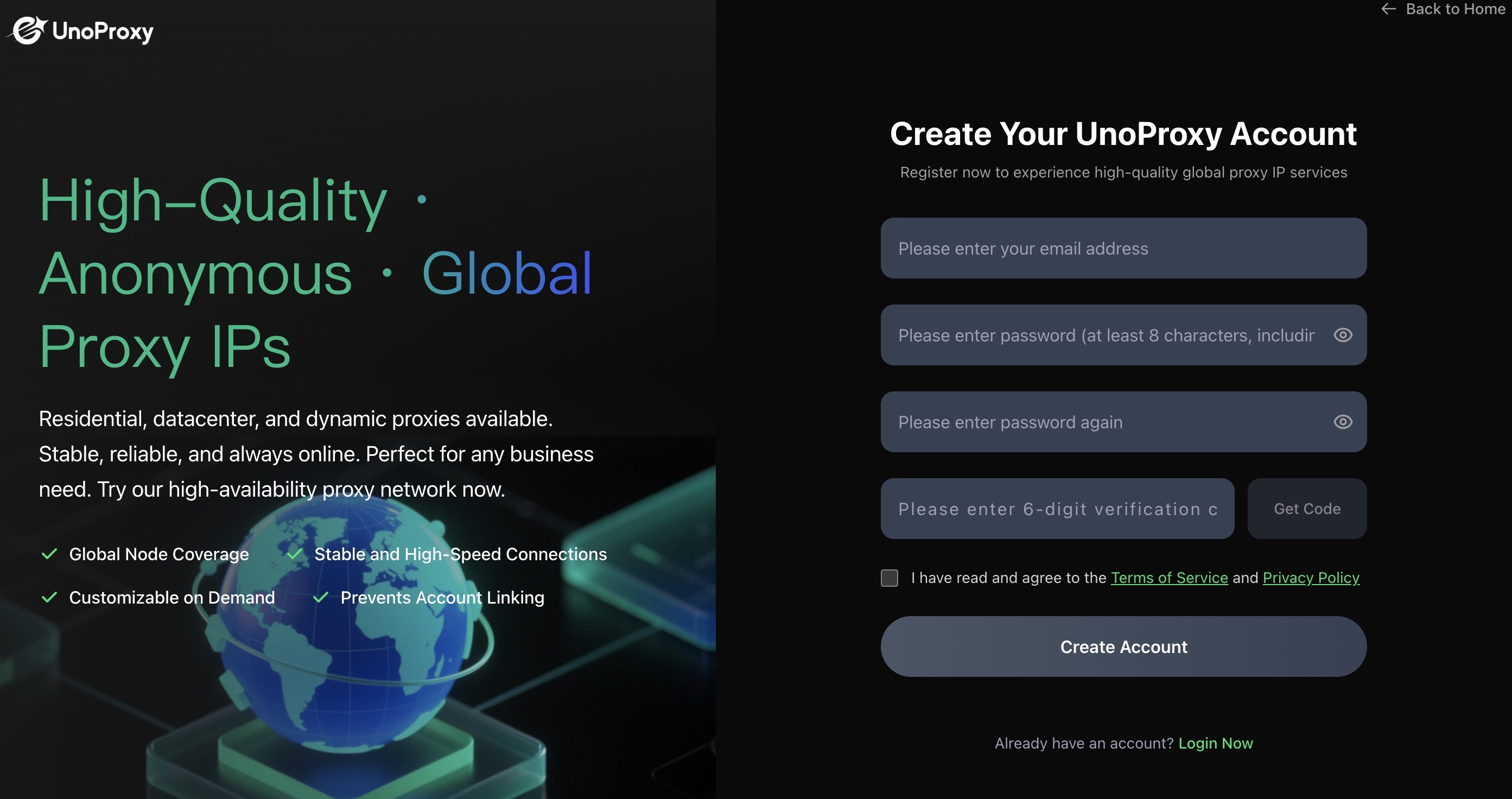
- Sign up for a UnoProxy plan and set up the IP in proxy app.
- Follow the setup guide to configure your browser or device.
- Connect to a recommended server location.
- Launch Roblox—you should now bypass Error 403.
👉 [Try UnoProxy Risk-Free Today]
Final Thoughts
Roblox Error Code 403 is usually a temporary and fixable issue. Start with basic steps like reinstalling the app or switching networks. For persistent IP-based blocks, a professional tool like UnoProxy offers a reliable solution.
Remember: always download Roblox from official sources and avoid using suspicious third-party software that might trigger security flags.
We hope this guide helped you get back into your Roblox adventures. Game on!
